Registering and Launching a DWC App
Overview
This section covers registering a simple "Hello World" BBj program to run in BUI and the new Dynamic Web Client using the information from the previous section.
Concepts Covered in This Section
- Registering and launching BBj GUI apps in the BUI and DWC clients using Eclipse and Enterprise Manager
Registering Apps for the Web
Before running your graphical BBj application in the BUI or DWC client, you must first register it as a web app in Enterprise Manager or by running code that accomplishes the task via the BBj admin API (search for "BBjAppServer" in the BASIS Online Help for reference material).
Registering an app means that you'll provide all the information necessary so that BBj can launch your application in a browser. Some of the necessary information includes:
- Name of the app - Used to create a unique URL for the app
- Full path to the BBj program - The program file to run
- Working directory - The directory in which the app will run
The working directory won't matter for some of the class's simple examples, but it can be important if your app expects to load auxiliary resources such as an ASCII resource file, images, etc.
Once an app has been registered, anyone with the URL and access to the server can run the app in a browser on a desktop, laptop, tablet, or smartphone.
Launching from Eclipse
If you normally develop code in Eclipse, you're probably familiar with clicking on the [Run BUI Program] toolbar icon that registers the program that you're currently editing in the BDT as a BUI program and then launches it in a browser window or tab (depending on your Eclipse configuration, which is covered later in this section).
Newer versions of the BDT plug-in for Eclipse include a similar toolbar button that does the same thing, except that it launches the program in a browser window or tab and uses the DWC client instead of the BUI client. This is the quickest way to get a DWC app up and running, as it only requires a single click.
Using Older BDT Versions
If you're still using an older version of the BDT plug-in for Eclipse and it's not feasible to update, then you can accomplish the same task using the [Run BUI Program] toolbar button and then making a small change to the URL to change the client from BUI to the DWC.
Step-by-step instructions:
- Load your GUI app into the Eclipse BDT editor.
- Launch the app via the Eclipse toolbar icon:
- (New versions) Click the [Run DWC Program] toolbar icon
- (Old versions) Click the [Run BUI Program] toolbar icon
- In the newly-launched BUI app, change the URL context from
appstowebapp.
Alternatively, you can copy the BUI URL, open a new tab in your browser, then paste in the copied URL. After pasting, change the URL context from apps to webapp and hit the [Return] key to relaunch the app in the DWC.
URL Examples
For example, if your BUI application is named 'GUISample':
- BUI URL:
http://localhost:8888/apps/GUISample - DWC URL:
http://localhost:8888/webapp/GUISample
Configuring Eclipse Browser Settings
Clicking on either of the toolbar buttons will cause the BDT to register the app as both a BUI and DWC application, then it will launch the app in a browser window.
If you have Eclipse configured to use its internal web browser, the app will display in Eclipse's built-in browser - usually in a tab next to your editor, although you can drag and drop the tab to a different pane position if desired to see both your program's source code and its execution simultaneously.
Using an External Browser
You can configure Eclipse to use your system's default web browser:
- Open Eclipse Preferences
- Navigate to General > Web Browser
- Select the 'Use external web browser' radio button
- Choose either 'Default system web browser' or select a specific browser
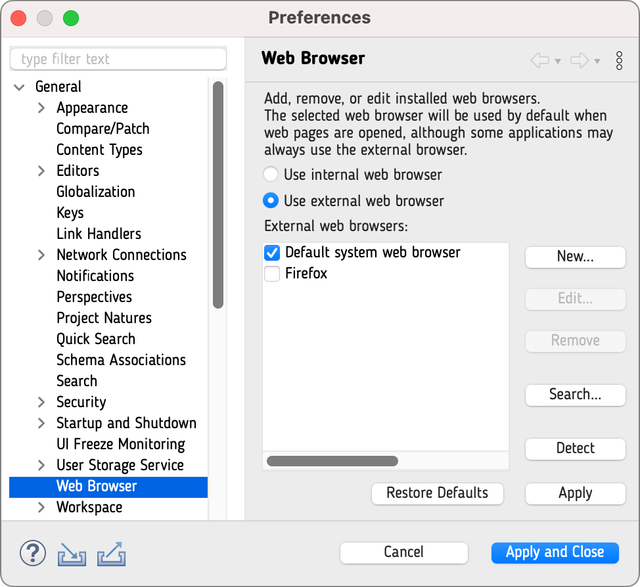
After doing so, the next time you launch an app via the toolbar icon it will display in a tab in your default web browser, such as Google Chrome or Microsoft Edge.
Using an external browser will be the preferred way to launch a DWC app later on in the class, as we will be accessing the browser's Developer Tools to view the JavaScript console and inspect the Document Object Model (DOM) and elements (BBjControls) on the page.
Registering via Enterprise Manager
If you don't normally write your code in Eclipse, you can register and launch a DWC application using Enterprise Manager:

Registration Steps
- Launch Enterprise Manager and log in as 'admin' (with the password of 'admin123' if you haven't changed the admin password for your system)
- In the EM Navigator left pane, expand the tree to show the Applications page: Web > App Deployment > Applications
- Double-click on the Applications node to load the list of registered applications
- In the Applications pane, click the [Add a new app] button
- Fill out the following fields:
- Application Name
- Program File
- Working Directory
- Ensure that the 'DWC Web App Enabled' checkbox is selected
- Click the [Save] button
Launching the App
To launch the app in the Dynamic Web Client, select the [Launch In Browser (DWC)] button at the top of the registration page.
Notes
Default BUI and DWC Contexts
The previous examples replaced the default BUI context of apps with the default DWC context of webapp. The actual context can be configured in EM by navigating to Web > Context Configuration in the left pane.
If you override the default context mappings, you will need to save your changes and then restart the root context. After doing so, launching a BUI/DWC app from Enterprise Manager or Eclipse will result in the app being loaded in the browser using an updated URL with the custom context in the path.